
Article

‘Add to Pardot List’ button in a Salesforce campaign

Length < 1 min read

Date April 4, 2018

‘Add to Pardot List’ button in a Salesforce campaign

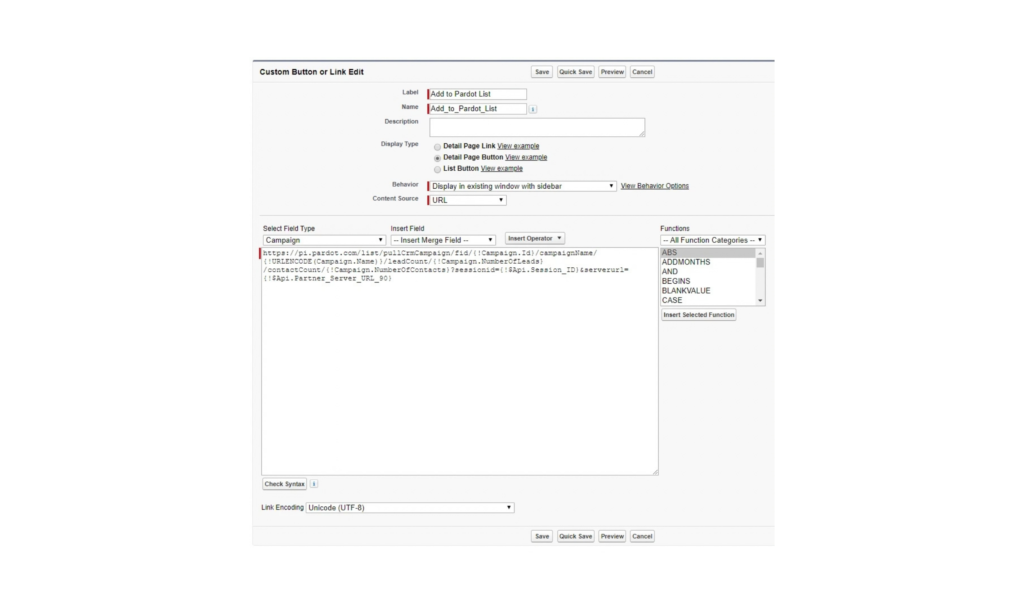
Save time exporting prospects from a campaign and importing to Pardot by adding a button to your campaign layout that allows you to add Prospects to a list straight from the Salesforce campaign.

  1. In Salesforce setup, search Campaign. Then select ‘Buttons, Links and Actions’.
  2. Add new button or linkg
  3. Label = Add to Pardot List
  4. Display type = Detail page button
  5. Behaviour = Display in existing window with sidebar
  6. Content Source = URL
  7. Paste this code into the Syntax box: https://pi.pardot.com/list/pullCrmCampaign/fid/{!Campaign.Id}/campaignName/ {!URLENCODE(Campaign.Name)}/leadCount/{!Campaign.NumberOfLeads} /contactCount/{!Campaign.NumberOfContacts}?sessionid={!$Api.Session_ID}&serverurl={!$Api.Partner_Server_URL_90}
  8. Save


Finally, add the button to the Campaign Page Layout

Now, when you look at a campaign in Salesforce, you will see the button ‘Add to Pardot List’. Click this to add all campaign members to a Pardot list!

Struggling to make the most out of your Pardot instance? get in touch with one of our consultants to see how Clevertouch can help.


Back to all insights
Colleagues collaborating around a standing desk in a modern office

Built for marketing leaders looking at the bigger picture.

Let's build what's next
Technology creates possiblity
People create performance

Trusted by 500+ organisations
worldwide